There are always some Xiaomi Mi Home ecosystem appliances or devices at home that don’t support smart home features. Before I got into embedded systems, I really didn’t have a good way to make these devices smart.
Until recently, I really needed to control some devices remotely. So I thought seriously about the solution.
Solution
What solutions are available to let your Xiao AI control unsupported smart home devices?
- There seem to be specialized Mi Home compatible modules on the market.
- Through Mi Home devices that support infrared.
- Mi Home smart plugs.
- Third-party platform devices in Mi Home.
Is there a programmable solution?
Yes, brother, there is. The answer is Bemfa in the third-party platform devices.
More specifically, it’s because Bemfa Cloud is an MQTT IoT platform, and Bemfa Cloud is integrated with Mi Home. So the control path becomes: Mi Home (Xiao AI) -> MQTT -> Bemfa Cloud -> Terminal Device.
In my case, this terminal device is an ESP32S3 module.
Hardware
Here I connect a relay module through ESP32S3 as a switch, and the relay module then connects to the LED ambient light. The ESP32S3 module connects to the network via WiFi and receives commands by subscribing to Bemfa Cloud’s topic through MQTT.
Software
On the ESP platform, WiFi connection is a relatively resource and memory intensive operation. Therefore, it can’t be implemented with a simple loop anymore. So esp-wifi defaults to requiring esp-rtos as a dependency.
MQTT Client Selection
There are very, very many MQTT client options in crates.io. I’ve tried mqttrust, rust-mqtt, minimq, mqtt-async-embedded, and embedded-mqtt.
Not all of these clients are compatible. From the Bemfa Cloud documentation, we see the following conditions:
# Protocol Introduction
Bemfa Cloud supports standard MQTT 3.1.1 protocol, providing the following features:

- QoS Support: Supports QoS 0 and QoS 1 message quality levels
- Retained Messages: Supports Retain message functionality
- Standard Compatibility: Fully compatible with MQTT 3.1.1 protocol standards
It doesn’t say it supports MQTT 3.1, nor does it say it supports MQTT 5. In fact, I’ve tried them all, and it only supports MQTT 3.1.1. Therefore, when selecting an MQTT library, we need to check if it states compatibility with MQTT 3.1.1.
For the ESP platform, we need this client to support async and be no-std.
My choice here is
mqttrust = { git = "https://github.com/BlackbirdHQ/mqttrust", branch = "master", default-features = false, features = ["mqttv3"] }Other Dependencies
Since the MQTT choice above is async, we definitely need to choose an async runtime suitable for embedded systems. My choice is embassy.
embassy-executor = "0.9"
embassy-time = "0.5"
embassy-net = { version = "0.8", features = [
  "dhcpv4",
  "dns",
  "medium-ethernet",
  "proto-ipv4",
  "tcp",
  "udp",
] }
embassy-sync = "0.7"
embassy-futures = "0.1"
static_cell = "2"
heapless = "0.9"
Also the ESP official WiFi library and RTOS library.
esp-radio = { version = "0.17", features = ["esp32s3", "wifi", "log-04", "esp-alloc", "unstable"] }
esp-rtos = { version = "0.2", features = ["esp32s3", "esp-radio", "esp-alloc", "embassy"] }
Adding MQTT Device
- Register for Bemfa Cloud: https://cloud.bemfa.com.
- Open the Mi Home app, go to
Me->Connect Third-Party Devices->Bemfa->Bind Account. - Go back to Bemfa backend and add a device. Bemfa only supports the following device types: outlet, light bulb, fan, sensor, air conditioner, switch, curtain, thermostat, water heater, TV, purifier. These devices all have numbers. When adding a device, you need to fill in the topic number. The last three digits of the topic name are the device number.
- When the last three digits of the topic name are 001, it’s an outlet device.
- When the last three digits of the topic name are 002, it’s a light bulb device.
- When the last three digits of the topic name are 003, it’s a fan device.
- When the last three digits of the topic name are 004, it’s a sensor device.
- When the last three digits of the topic name are 005, it’s an air conditioner device.
- When the last three digits of the topic name are 006, it’s a switch device.
- When the last three digits of the topic name are 009, it’s a curtain device.
Code Implementation
The biggest pitfall in the code implementation is actually the MQTT client. As mentioned above, there are many MQTT client choices, but not all are compatible. So we need to choose a client that supports MQTT 3.1.1.
Another issue is that generally MQTT clients don’t support domain name format addresses, while Bemfa Cloud’s MQTT address is in domain name format. Therefore, we need to do domain name resolution, get the IP address, and then connect to the MQTT server.
println!("Resolving {} via DNS...", config::MQTT_SERVER);
    let broker_ip = match stack.dns_query(config::MQTT_SERVER, embassy_net::dns::DnsQueryType::A).await {
        Ok(addresses) if !addresses.is_empty() => {
            println!("DNS resolved to: {:?}", addresses[0]);
            // DNS query for A record returns IPv4 only
            match addresses[0] {
                embassy_net::IpAddress::Ipv4(ip) => ip,
            }
        }
        _ => {
            println!("DNS failed, using fallback IP");
            Ipv4Addr::new(119, 91, 109, 180)
        }
    };
At this point, we leave the main loop for the light control logic. WiFi connection and MQTT subscription are handled by other threads (coroutines? Not familiar with embassy-executor).
    spawner.spawn(connection(controller)).ok();
    spawner.spawn(net_task(runner)).ok();
     // Spawn MQTT task
    spawner.spawn(mqtt_task(mqtt_stack, broker, stack)).ok();
    // Spawn subscription task
    spawner.spawn(mqtt_subscription(client, config::MQTT_SUBSCRIBE_TOPIC, &LED_ON)).ok();
Keep-Alive and Reconnection
The default keep-alive time for MQTT libraries is 59s. If you don’t set this value, you’ll see in the Bemfa backend that it goes offline shortly after connecting.
I couldn’t find relevant documentation on how long the heartbeat should be. However, 30 seconds won’t cause disconnection.
Here I first used a WS2812 LED light to simulate the control device module.
Witness the Miracle Moment
“Xiao AI, turn on the light!”
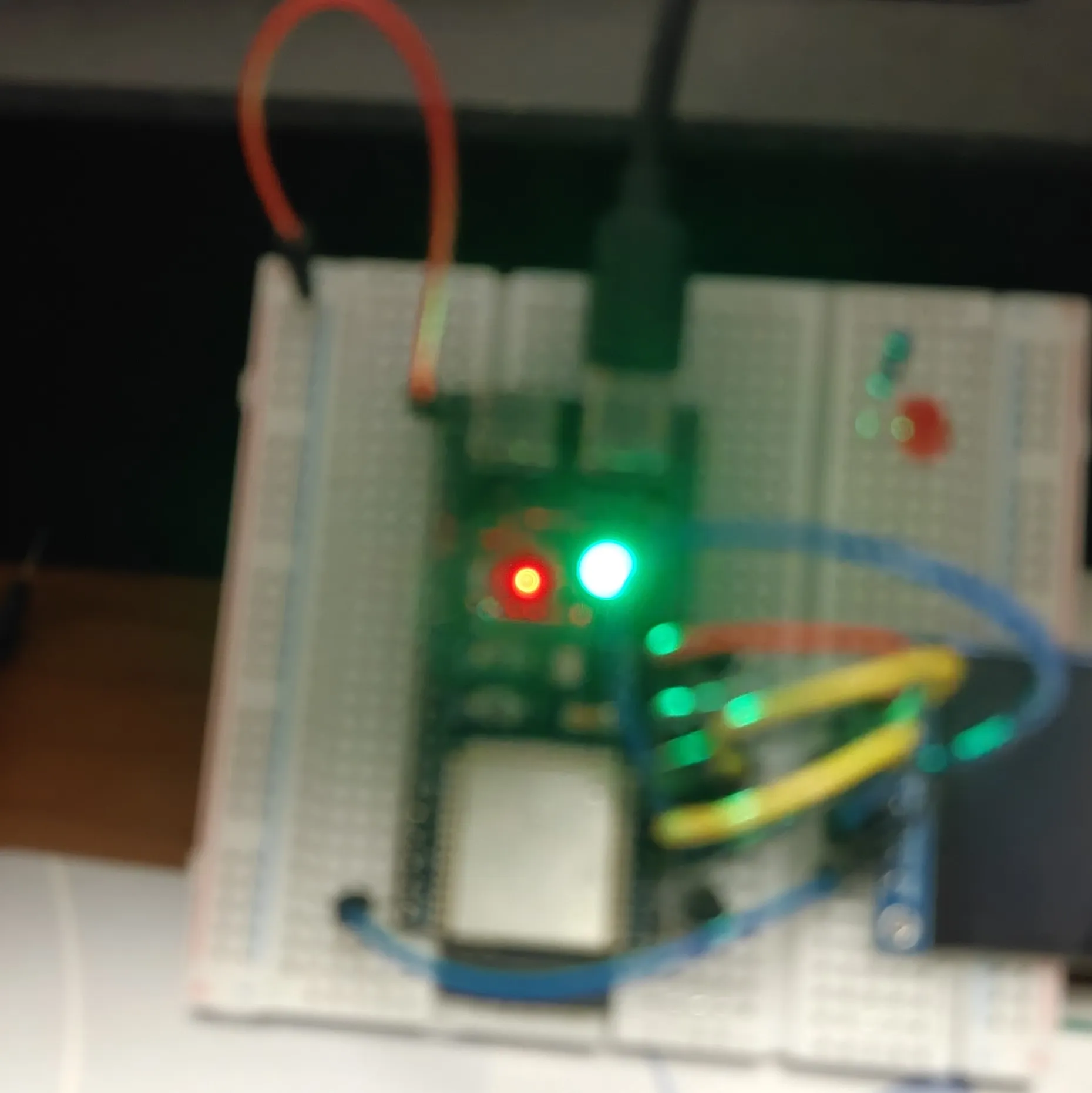
Complete code available at https://github.com/k9ame/esp-rs-examples.